
Guia passo a passo do medalhão inteligente
Obrigado por escolher a Totwoo! Bem-vindo(a) a bordo!
Parte 1 - Prepare-se


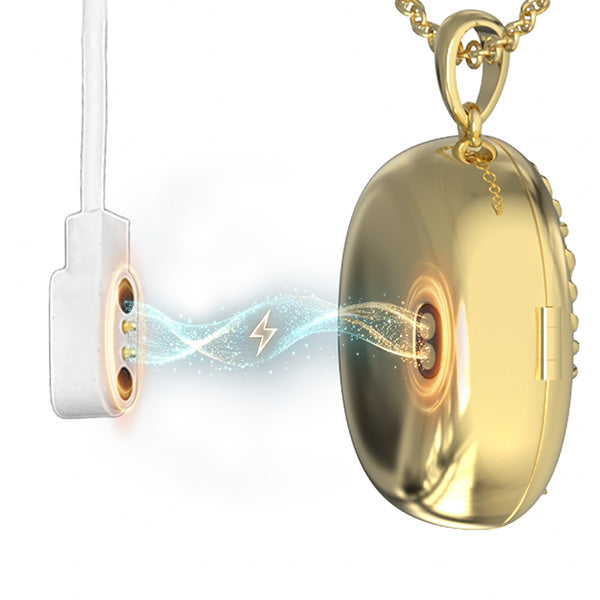
Passo 2 - Carregue seu pingente AI Locket antes do primeiro uso.
Etapa 3 - Certifique-se de que o Bluetooth do seu telefone esteja ativado.
Parte 2 - Conecte seu medalhão
Passo 1 - Abra o aplicativo Totwoo e siga as instruções do aplicativo para fazer login.
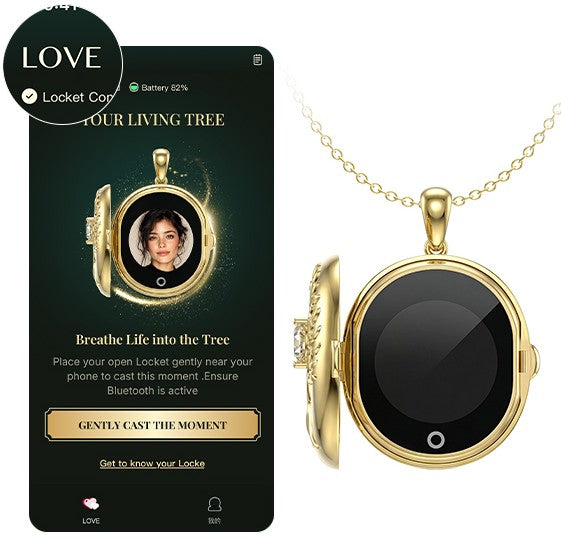
Passo 2 Toque em “Amor” no canto superior esquerdo do aplicativo e encontre a opção de conexão do Locket. Abra seu Locket e aguarde o reconhecimento — ele se conectará automaticamente via Bluetooth.
Parte 3 - Conheça o seu medalhão
Feature Overview: Upload photos or videos through the app. When you open your Locket, it will automatically display the content you’ve transferred. The instructions below will guide you through the upload and creation process.
1. Upload Photos/Videos
1.1 File Selection Options:
- Select photos or videos from your phone's gallery
- Capture them directly using the camera
1.2 Upload Quantity and Feature Limitations:
- When uploading only one photo, you can either generate an AI animation or play the image directly.
- When uploading 2–5 photos, they will be displayed in a looping slideshow on the Locket, and AI generation will not be supported.
- When uploading a video, files must be within 5 seconds or under 7 MB.
- The original video content will be played directly on the Locket.
To ensure the best display results:
- When cropping, make sure the main subject is fully positioned within the guide frame.
- Use clear, well-lit original photos.
- Front-facing images significantly improve the final output quality.
- Keep the Bluetooth connection between your phone and the Locket stable during upload.
2. AI-Generated Animation
2.1 Before Generating, Please Make the Following Selections:
- Object Type: Single Person / Multiple People / Pet
- Animation Style: Choose a playback angle that matches the sample images. For best results, use clear, unobstructed photos with a similar shooting angle.
2.2 AI Generation Limits and Notes:
- After generation, you can preview the animation and confirm the result before transferring it to your Locket.
- Each Locket device includes 10 AI animation generation credits.
- Once you’ve used all 10 credits, you won’t be able to generate any new AI animations.
- However, previously generated animations can still be reused from the History section.
3. History and Content Reuse
What You Can Do in History
- You can view or download previously uploaded photos, videos, and AI-generated animations.
- You may also retransmit any saved content to the Locket.
- Re-downloading or retransmitting AI-generated animations from History does not consume additional generation credits; even if all credits have been used, previously generated animations can still be reused freely.
- All history is stored locally and will not be uploaded to the cloud.
4. Bluetooth Transfer Notes
To Ensure a Smooth Transfer, Please Note the Following:
- Do not leave this page or close the Locket’s cover during the transfer.
- Keep your phone close to the Locket.
- Do not turn off Bluetooth.
- Ensure the battery is sufficiently charged (at least 20%), as low battery levels may affect transmission success.
5. Playback Instructions
Once transferred, the Locket will automatically play your media when opened:
- Single photo: Displays a static image or an AI-generated animation
- Multiple photos: Plays the photos in a looping slideshow
- Video: Plays the original video file
6. Touch Interaction Guide
Locket Features an Additional Touch Point Below the Screen:
- Photo playback mode: Gently tap the touch point to switch to and display the next photo.
- Video playback mode: After the video finishes playing, gently tap the touch point to replay the current video.
- Screen Wake-Up: When the screen turns off automatically, gently tap the touch area below the screen to wake it up again.
Armazenamento & Bateria
- Fotos, vídeos e animações geradas por IA são armazenados apenas na conta do aplicativo do usuário que fez o upload (salvos localmente no telefone e não enviados para a nuvem), e também são salvos no dispositivo Locket.
- Quando um Locket com conteúdo carregado é oferecido como presente, o conteúdo será sincronizado automaticamente com a conta do aplicativo do destinatário.
- Quando o destinatário cria uma nova conta e carrega novo conteúdo, o conteúdo original no dispositivo será substituído.
- Uma única carga completa permite centenas de reproduções de vídeo.
- Para manter o design requintado e compacto do Locket, a capacidade da bateria é naturalmente limitada. Para prolongar o tempo de uso, a tela se desligará automaticamente logo após o término da reprodução.
- Quando a tela estiver desligada, basta tocar no ponto sensível ao toque abaixo da tela para ativá-la novamente.
- Que este breve vislumbre de memória seja suficiente para acalmar seu coração e curar seus momentos.
Se tiver alguma dúvida, entre em contato. support@totwoo.com.
